

Car and Truck Support
Downloads, drivers and guides for Aoocci automotive products.
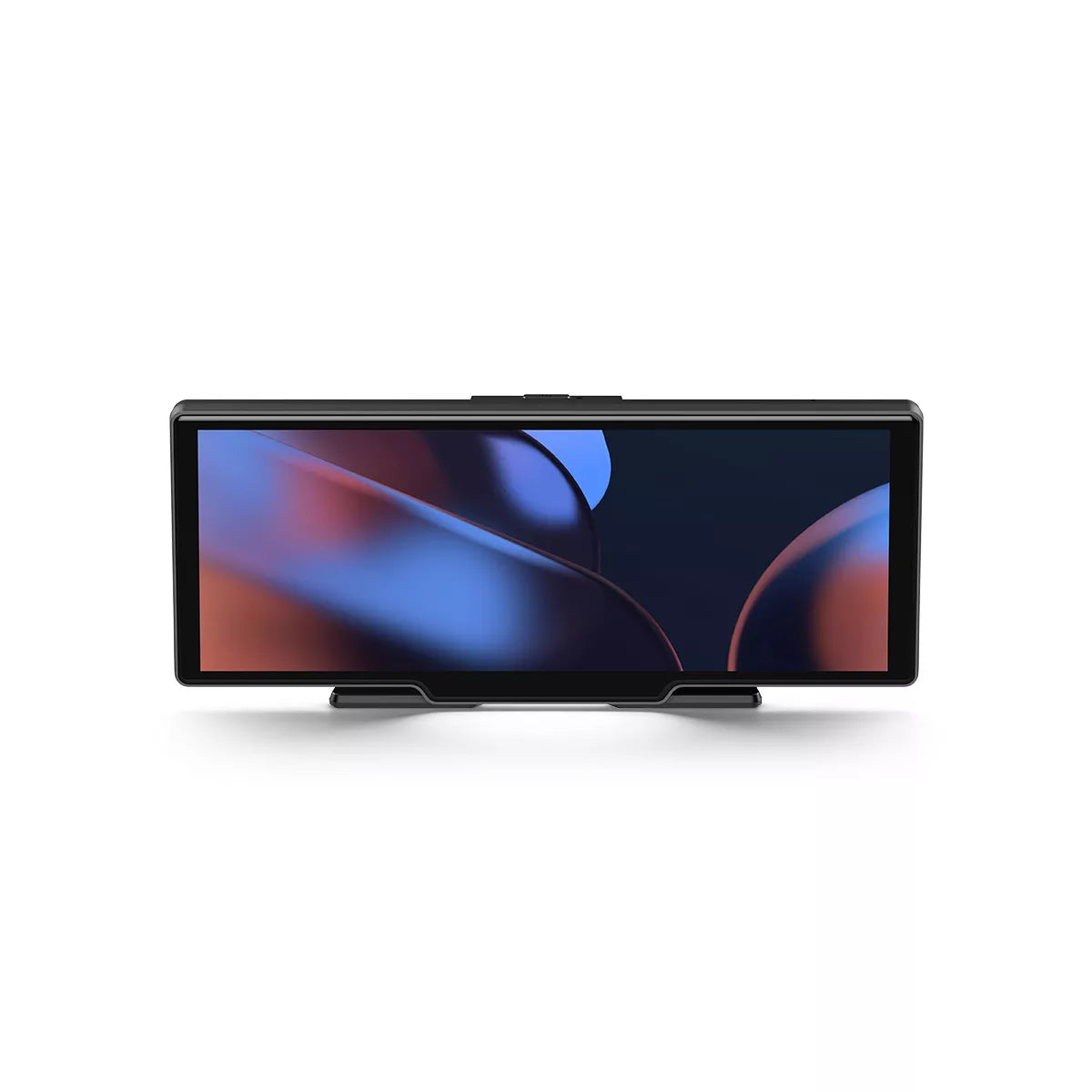
V30
Frequently asked questions
Troubleshooting for portable car stereos and truck GPS navigation.
Contact support →How to get sound through car speakers?
You have three options:
1. AUX Cable: Connect the AUX cable from your device to the AUX socket in your car (best quality).
2. FM Transmitter: Tune your car radio and the device to the same empty FM frequency (e.g. 107.9 MHz).
3. Built-in Speaker: Use your device's own speaker (turn off FM/AUX).
Why do I hear noise when I use FM transmission?
Noise is usually caused by frequency interference. Find a completely empty FM station on your car radio (one that only produces static) and tune the V30 to that exact frequency. If possible, using an AUX cable connection is recommended for noise-free audio.
Wireless CarPlay/Android Auto won't connect.
1. Make sure both Bluetooth and Wi-Fi are turned on on your phone.
2. "Forget" the device in your phone's Bluetooth settings and try pairing again.
3. Restart your phone and V30 device.
4. Note: Android Auto requires the "Android Auto" app and a compatible Android phone (Android 11+ recommended).
Does it support 24V power for trucks?
Yes, the included cigarette lighter power adapter typically supports a voltage range of 12V-24V, making it safe for use in cars, trucks, and RVs. Check the label on your specific charger to confirm.
Wireless CarPlay/AA adapter
5 Ways to Solve the Problem of Wireless CarPlay Not Connecting
Apple CarPlay is a safe, hands-free way to access apps on your iPhone while driving. With Apple CarPlay, you can use your phone to make calls, send messages, and listen to music. However, there are times when Apple CarPlay keeps disconnecting , doesn't open properly, or there's no sound when CarPlay is connected. This can be really annoying when you're sitting in the car trying to figure out why wireless CarPlay isn't working. But don't worry. In this article, we'll look at what causes Apple CarPlay to malfunction and how to fix it.
The image below shows the list of countries and regions supported by CarPlay.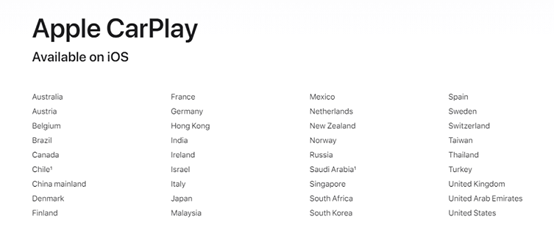
Which cars offer wireless CarPlay in 2024:
- Acura: MDX, RDX,
- Audi: A3, A4, A5, A6, A7, A8, E-Tron, E-Tron GT, Q3, Q5, Q7, Q8
- BMW: Series 2, Series 3, Series 4, Series 5, Series 7, Series 8, iX, i4, X3, X4, X5, X6, X7, Z4, X1, X2
- Buick: Enclave, Encore GX, Envision
- Cadillac: CT4, CT5, Escalade/Escalade ESV, XT4, XT5, XT6
- Chevrolet: Blazer, Bolt EV, Bolt EUV, Camaro, Corvette, Equinox, Malibu, Silverado 1500, Silverado 1500 LTD, Silverado 2500/3500, Suburban/Tahoe, Trailblazer, Traverse
- Chrysler: Pacifica
- Dodge: Durango
- Ford: Bronco, Edge, E-Transit, Expedition/Expedition Max, F-150, F-150 Lightning, Mustang Mach-E
- GMC: Acadia, Hummer EV, Sierra 1500, Sierra 1500 LTD, Terrain, Yukon/Yukon XL
- Honda: Accord, Civic
- Hyundai: Accent, Elantra, Ioniq (excluding Ioniq 5), Kona, Kona EV, Palisade, Santa Cruz, Santa Fe, Sonata, Tucson, Venue
- Infiniti: Q50, Q60, QX50, QX55, QX60, QX80
- Jeep: Compass, Grand Cherokee/Grand Cherokee L, Wagoneer/Grand Wagoneer
- Kia: Carnival, Forte, K5, Niro, Rio, Sorento
- Lincoln: Navigator, Nautilus
- Maserati: Ghibli, Levante, MC20, Quattroporte
- Nissan: Armada, Pathfinder, Rogue
- Porsche: 911, Cayenne, Panamera, Taycan, Macan
- Ram: 1500, 2500/3500, ProMaster
- Toyota: Tundra, Supra
- Volkswagen: Arteon, Atlas/Atlas Cross Sport, Golf GTI/Golf R, ID.4, Jetta, Taos, Tiguan
Please note that not all vehicles from automakers support wireless CarPlay, and support may vary depending on the specific model configuration you purchase. This list may not be complete; please call your local dealer for details.
Make sure Wi-Fi and Bluetooth are turned on
Make sure Wi-Fi and Bluetooth are turned on on your iPhone. Also, check if you've enabled Airplane Mode, which prevents your phone from making any wireless connections.
Apple CarPlay is limited
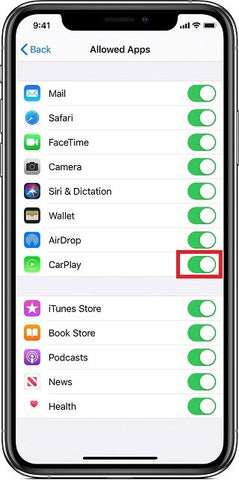
If CarPlay isn't detecting your iPhone, you need to make sure CarPlay isn't restricted on your phone. On your iPhone, go to Settings > Screen Time > Content & Privacy Restrictions and tap Allowed Apps to enable CarPlay.
CarPlay connection is blocked
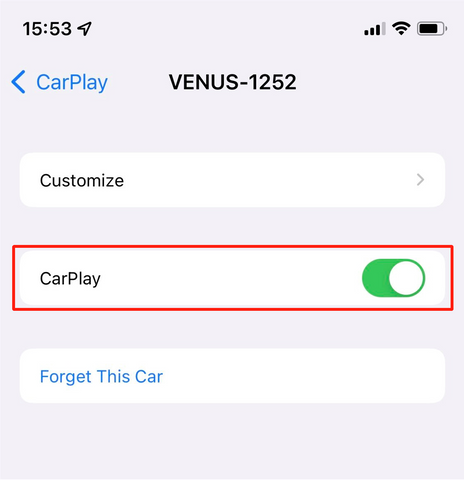
Another issue with wireless CarPlay not working properly could be that the CarPlay connection is blocked. If it's blocked, CarPlay can't activate. You can resolve this by going to Settings > General > CarPlay, selecting your car from the connections list, and then turning on CarPlay.
Restart and update
Restarting and updating your device may fix connection issues
- Restart your iPhone and head unit
- Update your iPhone
Apple Carplay Black Screen
A black screen appearing while using Apple CarPlay may disrupt your driving experience.

In this article, we will look at the causes of this problem and effective solutions.
Causes of Apple CarPlay Black Screen
1. Screen connection problems:
One of the main causes of a black Apple CarPlay screen is unstable or faulty connections between your iPhone and your car's USB port. This can be caused by a damaged cable, debris in the port, or loose connections.
2. Software compatibility issues:
Outdated software versions on your iPhone or car's infotainment system can lead to compatibility issues, resulting in a black screen or other issues with Apple CarPlay functionality.
3. Software errors:
Sometimes, software bugs or conflicts on your iPhone or car's system can cause the Apple CarPlay screen to go black. This can happen due to updates, settings changes, or other software-related factors.

Troubleshooting Apple CarPlay Black Screen Issue
To fix Apple CarPlay black screen issues
1. Check connections:
Make sure the iPhone cable is undamaged, clean, and securely connected to the car's USB port. Remove any obstructions.
2. Update software:
Keep your iPhone and car's infotainment system updated to the latest software versions. Check for updates in your iPhone's Settings app and follow the manufacturer's guidelines for updating your car's system.
3. Restart your devices:
Restart both your iPhone and your car's infotainment system to refresh the software and establish a stable connection.
4. Reset settings:
If the problem persists, reset your iPhone or car infotainment system to its default settings to resolve any software conflicts.
5. Seek professional help:
Contact Apple Support to resolve iPhone issues. Contact your car manufacturer or dealer for advice on infotainment system issues.
Apple CarPlay Black Screen - Frequently Asked Questions
Here are some frequently asked questions about Apple CarPlay black screen.
1. Why is my Apple CarPlay screen black?
This may be due to software bugs, connection issues, or device compatibility issues.
2. How can I fix the black screen in Apple CarPlay?
Try restarting your iPhone, updating the software, checking the cables, and resetting CarPlay.
3. What are common reasons for Apple CarPlay screens to go black?
Software bugs, hardware failures, outdated software and incompatible applications.
4. Does Apple provide troubleshooting tips for CarPlay black screen issues?
They may suggest resetting your iPhone, updating the software, and checking for hardware issues.
5. How to prevent Apple CarPlay black screen?
Keep your devices updated, use high-quality cables, avoid running multiple apps at once, and maintain a stable connection.
Download Autokit APK and enjoy wireless CarPlay
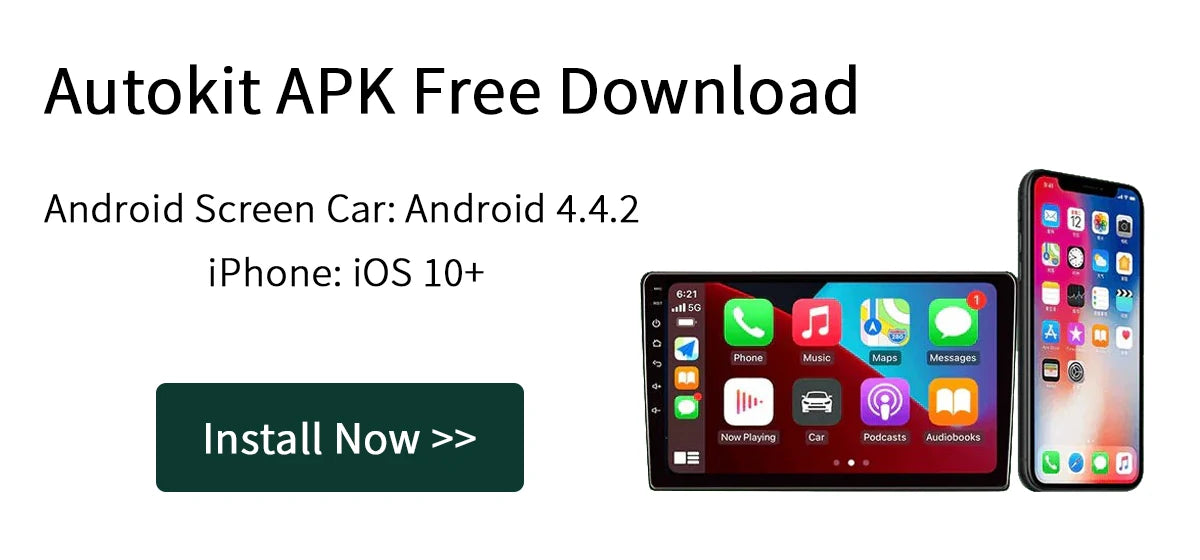

Give your Android car screen wireless CarPlay!
Autokit Box
Autokit Box Carplay APK.
Android Car Screen: Android 4.4+
iPhone: iOS 10+
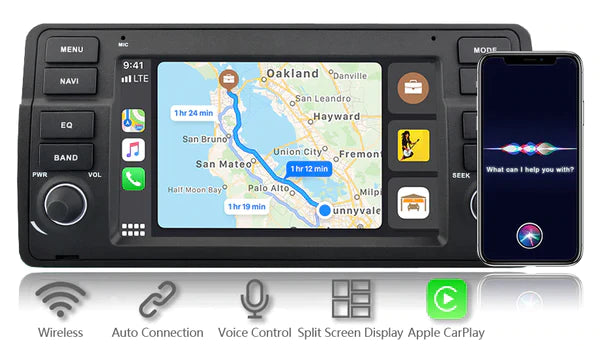
About the Autokit Box app
The Autokit app is software exclusively for the CarPlay Autokit Box adapter!
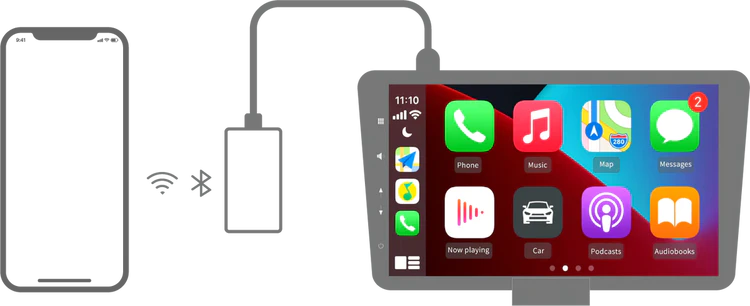
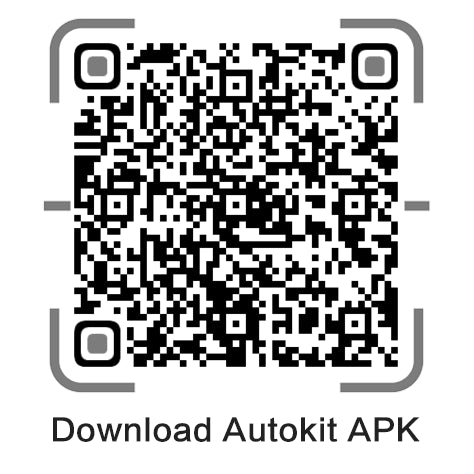
Scan and Download
⭐ Buy the best Autokit Box at Aoocci and take advantage of a limited-time discount using the code CARPLAY ! Act now.
Do dashcams record when the car is turned off?
Have you ever wondered if your dashcam still protects you even when you leave your car alone and walk away? Someone might scratch your car and blame you, tamper with your vehicle, or even try to break in. Scary thought, right?
You're not alone in feeling this way. Many car owners worry about their vehicles when they're parked and unattended.
Most dashcams can't record when your car is turned off. But, guess what? Some smart dashcams have a " parking mode " that continues recording even when your car is turned off!
After reading this, you'll be equipped with the knowledge to keep an eye on your car 24/7 and gain peace of mind! Read on.
Do dashcams record when the car is parked?
If you turn off your car, your dashcam may still record, but it all depends on how it's connected to the car's power supply and what settings you've selected. Every dashcam is slightly different.

Power source
- If your dash cam is connected to the cigarette lighter: When you turn off your car, your dash cam will continue recording as long as the cigarette lighter still has power. But if the power is cut off, your dash cam will stop working. It's like turning off a lamp when you unplug it!
- If your dash cam is connected to ACC (accessory) power: Whether your dash cam will continue to record depends on how your car manages ACC power. Some cars cut all accessory power when the engine is turned off, while others keep some things running for a while.
- If your dash cam is connected to a constant power source, your dash cam will record 24/7, even when your car is turned off. It's like a mini security camera for your car!
Application settings
If you select the "Parking Mode" setting, your dash cam will continue recording even after the engine is turned off. As long as it has power, it will keep an eye on your car.
Note: Please note that the dash cam will draw power from the car battery and its own battery if it continues to operate after the ignition is turned off, which may drain the car battery and prevent the vehicle from starting after being parked for a long time.
But wait, there's a solution! The Aoocci dashcam features a special parking mode with ultra-low power consumption. This means you can enjoy the peace of mind that comes with 24/7 monitoring without worrying about running out of battery.

How long will the dash cam stay in parking mode?
The recording time of your dash cam depends on how it is powered.
- When you're parked, the built-in battery is like a mini time bomb. Most dashcams can only record for about 4-5 hours on battery power alone.
- If your dash cam is connected to a part of your car that provides continuous power, it can potentially record 24/7 even when the engine is turned off.
Therefore, some dashcams can continue recording even after the car is turned off. However, this depends on the power source and the dashcam's features. If your dashcam doesn't have a built-in battery or a constant power supply, it will likely stop recording when the car is turned off.
CarPlay for older cars – improved connectivity thanks to modern solutions
Contents
- The benefits of CarPlay in an old car
- 3 Ways to Add CarPlay to Older Cars
- Portable CarPlay screen from Aoocci
- How to Install a CarPlay Screen in Older Cars
- FAQ
Without CarPlay, you may encounter challenges like navigation, limited app access, and safety issues while driving. But don't worry! Even if your car is old, you can upgrade your driving experience with CarPlay through an aftermarket install or upgrade, making it safer, more convenient, and more enjoyable.
Benefits of CarPlay for older cars
Apple CarPlay and Android Auto offer numerous benefits for older cars, such as improved safety features, enhanced connectivity options, upgraded entertainment systems, and added convenience. With CarPlay, drivers can seamlessly access navigation, music, phone calls, and messaging without distraction, promoting safer driving practices and improving the overall driving experience.
3 Ways to Add CarPlay to Older Cars
1. CarPlay Radio
Upgrade your older car stereo system to one that supports Apple CarPlay or Android Auto for seamless smartphone integration.
Advantages:
- Seamless integration with your car's audio system;
- Provides a built-in CarPlay interface for easy access to apps and features.
Defects:
- Requires professional installation, which may incur additional costs;
- Limited compatibility with older car models.
2. Tablet + Autokit Box
Use the Autokit box to wirelessly connect your Android tablet to your smartphone, enabling CarPlay and Android Auto functionality.

Advantages:
- Compatible with all older cars;
- Offers flexibility by using your existing tablet as a CarPlay interface;
- Typically more affordable compared to installing a CarPlay radio.
Defects:
10. How do I choose the right CarPlay screen for my older car?
When choosing a CarPlay screen, consider factors like screen size, installation method (portable or mounted), compatibility with your car's existing systems, and budget. You can browse our CarPlay collection to find the perfect option for your needs.
No sound in CarPlay Smart Box
There's no sound when I connect my smartphone to the CarPlay Smart Box. How do I fix this?
1. Lock your phone, then turn on the screen and click the AirPlay button on your phone screen;

2. At least two connection channels will appear: one is Carplay; the other is Bluetooth.
- CarPlay indicates the AUX configuration channel of the CarPlay system
- Bluetooth refers to the original Bluetooth audio channel in the car

3. The sound problem is usually caused by the incorrect selection of these two channels. Switch to the other to solve the sound problem.
4. There is another solution:
Go back to the original car system and find the external device.
Locate the AUX channel and the Bluetooth channel. If there's no sound, switch them.
- Audi: Return to original car system => Media => AUX-IN;
- Porsche: Go back to original car system => press 'SOURCE' button => press 'OPTIONS' button => select 'SET MEDIA/AUX';
- Mercedes-Benz: Return to original car system => (NTG4.5) in Engineering Model;
- BMW: Return to original car system => Multimedia.
5. What should I do if I don't see the AUX option/channel in my car's original system?
- Go to a car dealer to activate the AUX option;
- Purchase an AMI-AUX cable to activate the channel. If you need to purchase a cable, please check the link below:
Black screen problem with Carplay Smart Box
When you encounter this kind of problem, please don't worry.
There are 3 main causes of this problem, follow the steps below to solve it:
1. There is something wrong with the DIP switch setting, check the instruction diagram and make sure the settings are correct;
2. The LVDS-IN and LVDS-OUT cables are connected incorrectly, swap the connections of these two cables;
3. System error:
- Restart your system, connect CarPlay to your phone, and go directly to CarPlay. >> Go to Settings.

- Open Settings >> TV >> OFF.


- Open Settings >> DVR >> OFF


- Open Settings >> DVD >> OFF.


How to connect CarPlay wirelessly
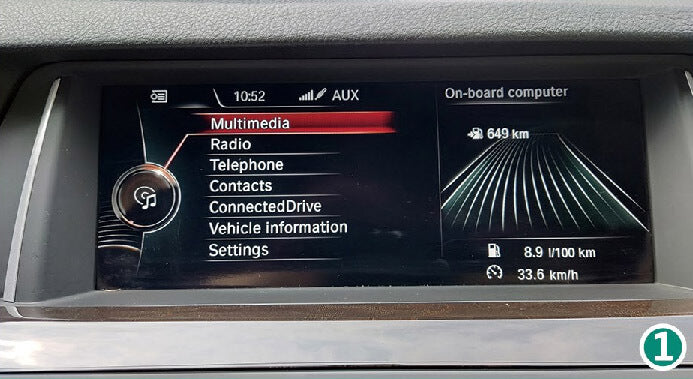
1. Go to Multimedia in the factory main menu.
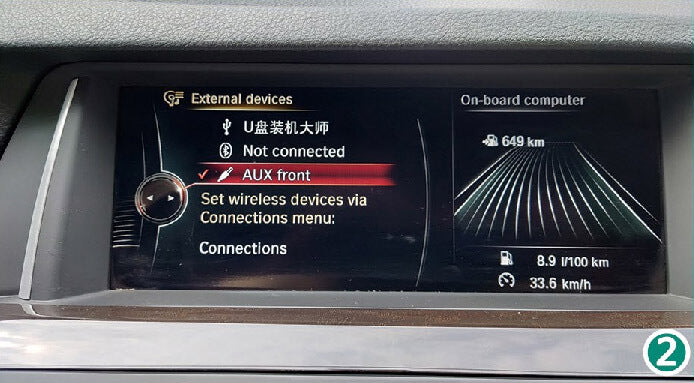
2. Select the AUX channel.
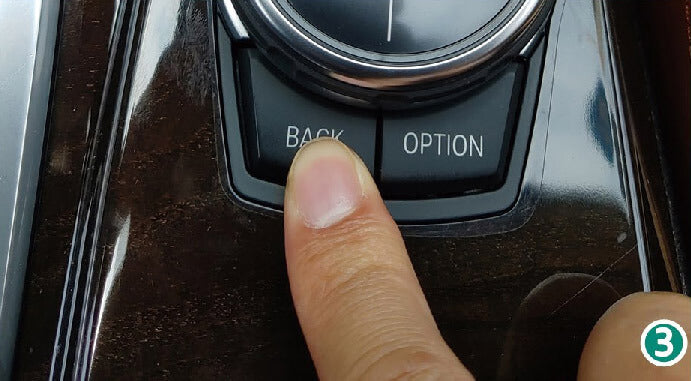
3. Press the Switch button (Refer to the installation diagram).
4. Then the SmartBox main menu will appear.
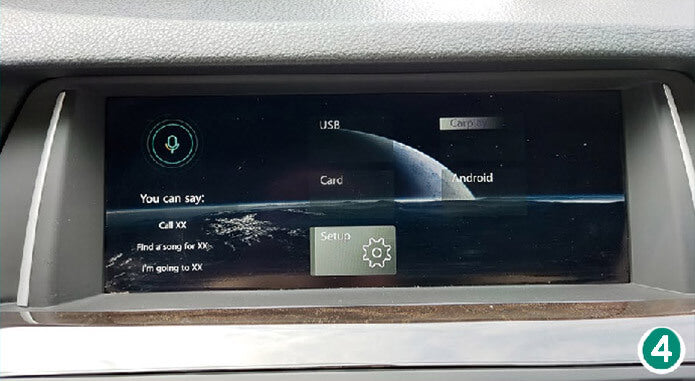
5. Click "Settings", select "Bluetooth".
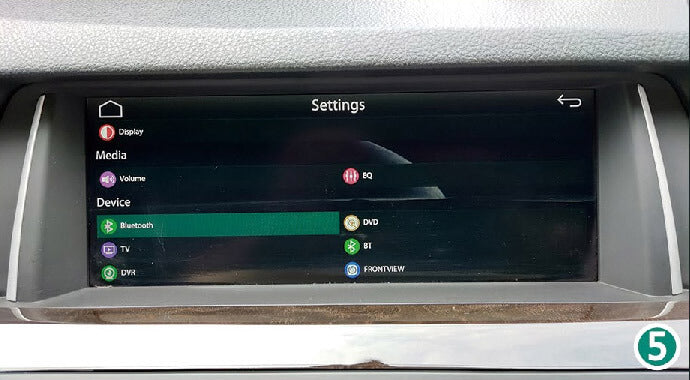
6. Turn on "Visibility".
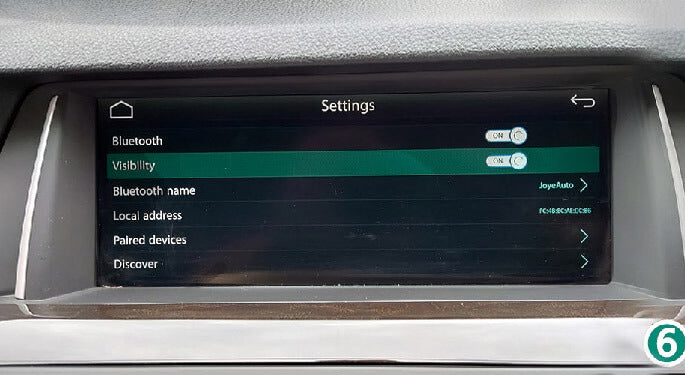
7. Go to iPhone settings.
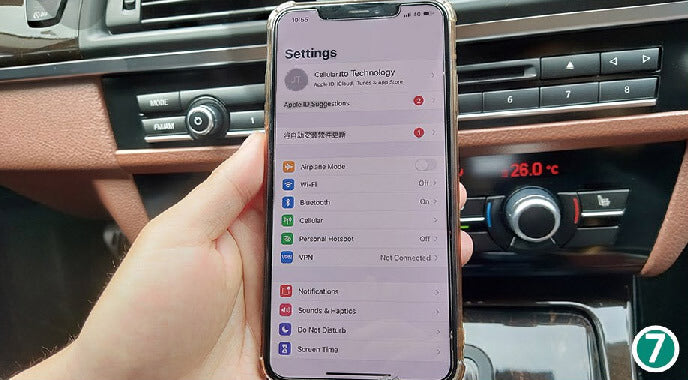
8. Turn on wifi (DO NOT connect to any network), the WIFI-AP-*** network will appear (No need to connect).
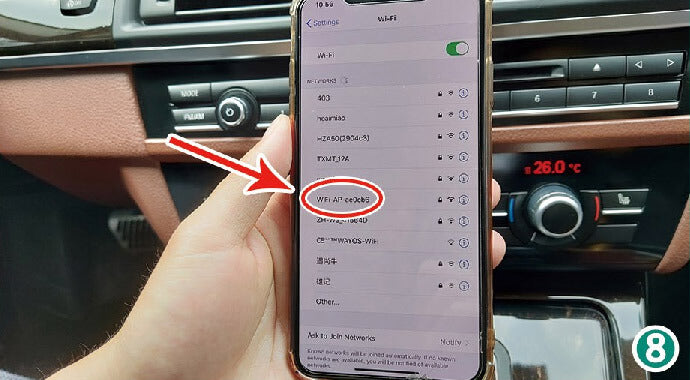
9. Turn on Bluetooth, Bluetooth option will appear.
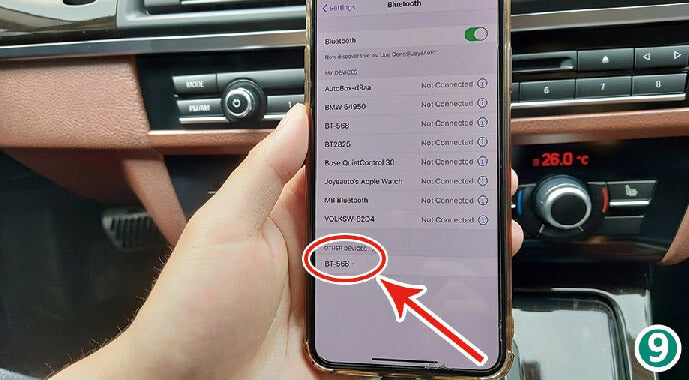
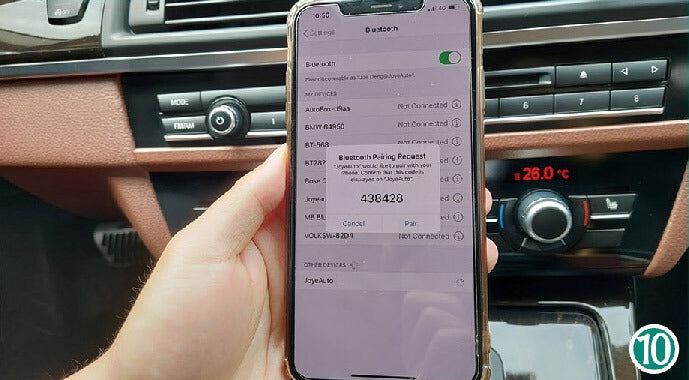
10. Bluetooth pairing request - pair.
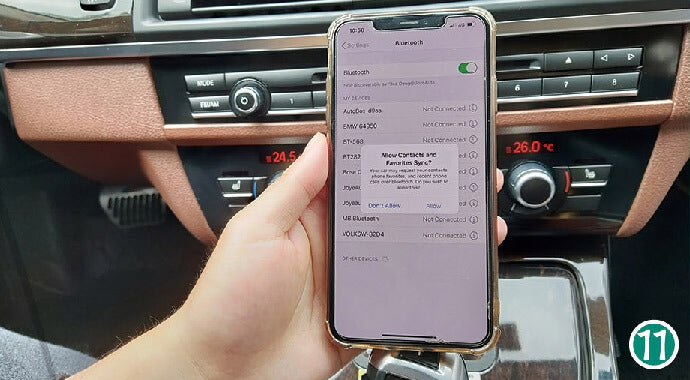
11. Allow syncing of contacts and favorites.
12. Click "Paired Device" in Bluetooth settings (Visibility will turn off after pairing).
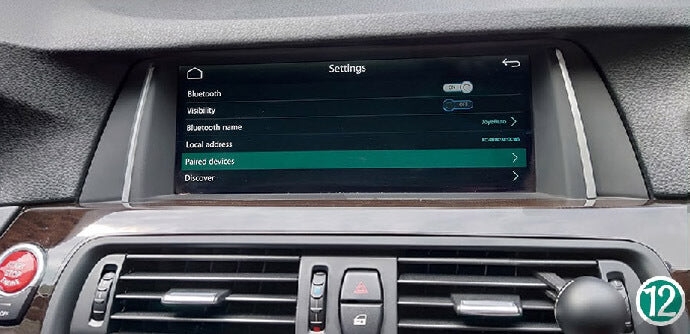
13. Click on iPhone Bluetooth.
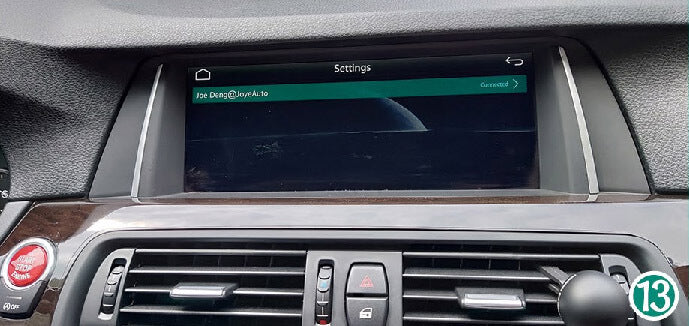
14. Then click WIFI Carplay.
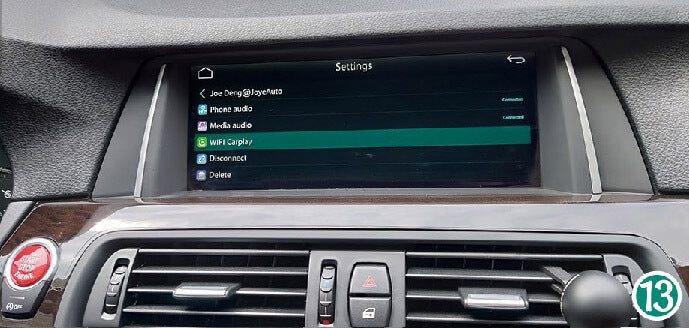
15. Your iPhone will ask you to USE CarPlay, and then CarPlay will automatically launch.
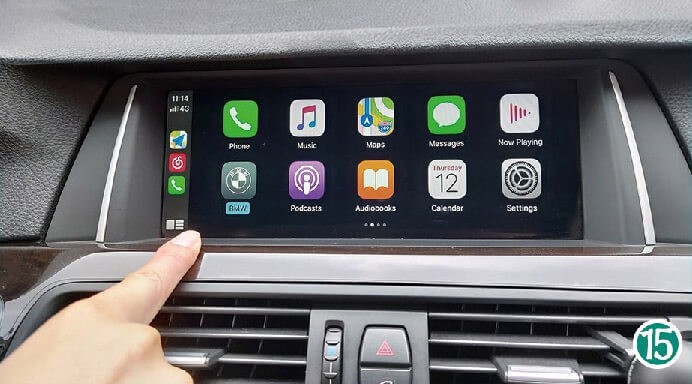
Everything is ready. Enjoy...
AutoKit-Box: What should I do if I cannot identify my car with the Carplay USB dongle?
Note: APK file must be installed before use.
Please confirm the following points:
1. Usually a car has two USB ports, you can try both.
2. First, open the APK file and then connect the product. Check if it is recognized. The data cable for your phone must be original or of good quality.
3. Open Autokit Settings and select "Software" in the decoding method. Also select "Weak" in the boot mode (System Advanced Option).


4. Clear cache (Settings → Applications → Storage → Clear data)
5. Please update the APK file and AutoKit-Box to the latest version.
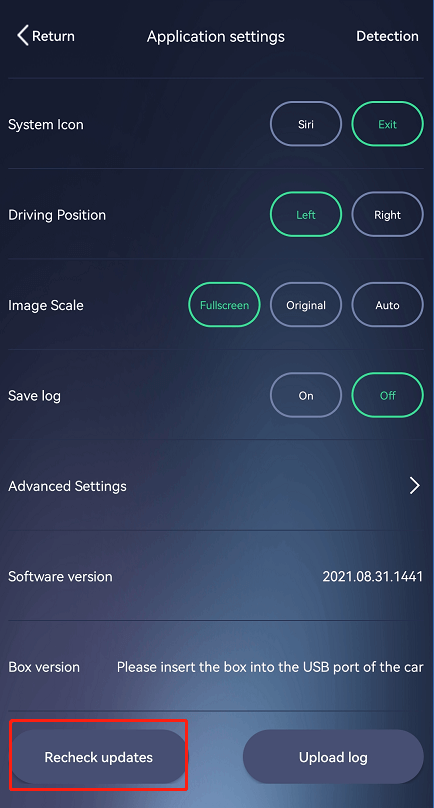
6. If the product still does not work, test it in another Android car.
7. Check if the USB port supports OTG function.
How to use Mirroring-link on Android phone
1. Go to settings and select "Smart phone".
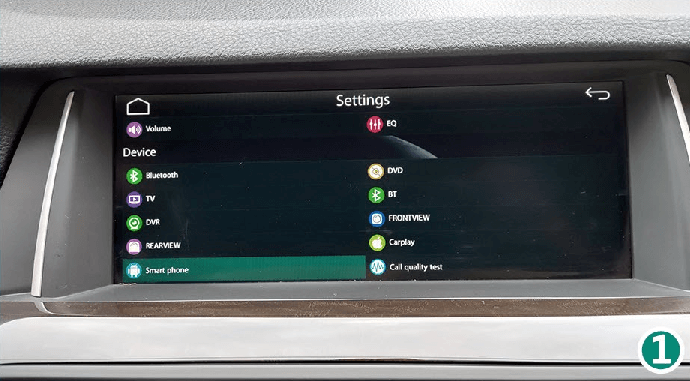
2. Select "Android Device".
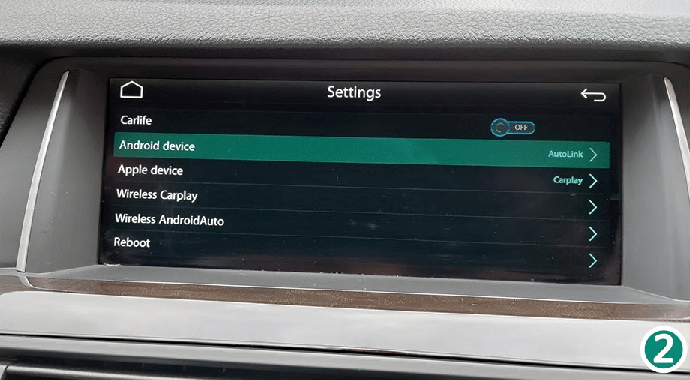
3. Select "Auto Link".
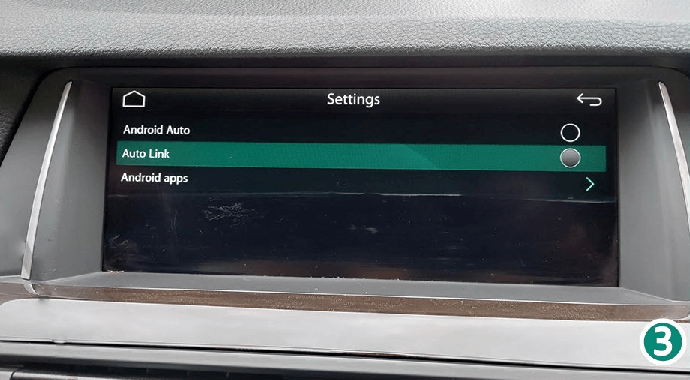
4. Connect the Type-C cable with the USB cable of the CarPlay Smart Box.
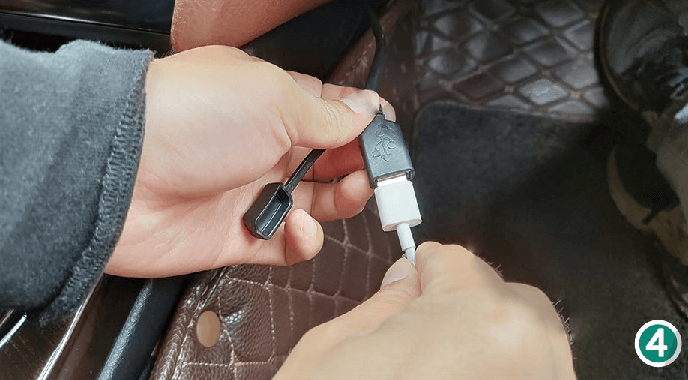
5. Connect to your phone.
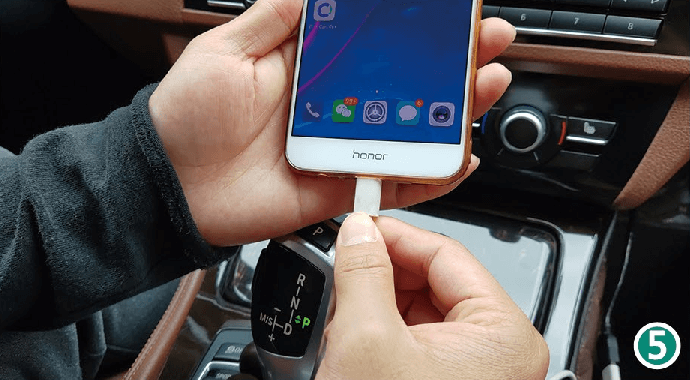
6. Connect "Android Apps" to get the Autolink app download link .
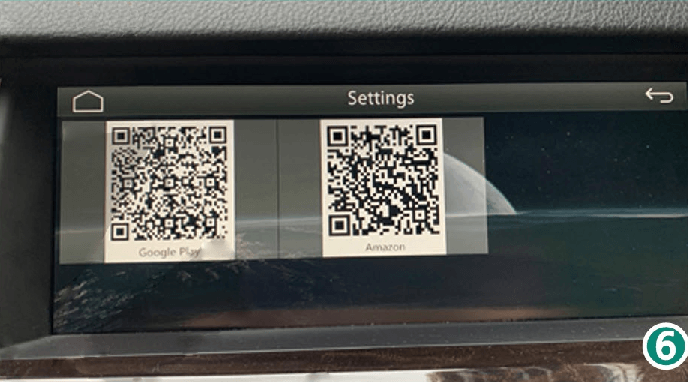
7. Download the Autolink app to your phone.
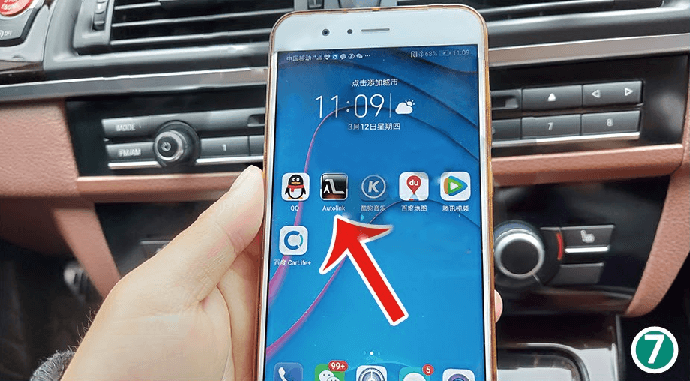
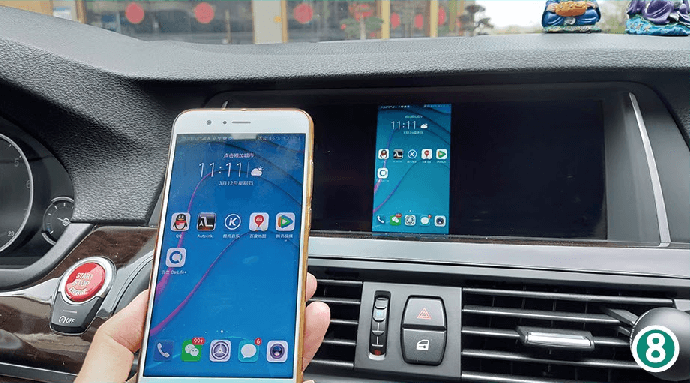
Enjoy using it.
How can I reset and restore factory settings of AI-Box?
How to factory reset AI-Box?
1. First, click "Settings".

2. Find "System" and click to enter.

3. Select "Advanced".

4. Go to "Reset Options".

5. Select the third option "Restore factory settings".

5 Benefits You Need to Know When Adding CarPlay to Your Car
CarPlay/Android Auto is a smarter and safer way to use your iPhone while driving. But how many people have considered the benefits of installing CarPlay?
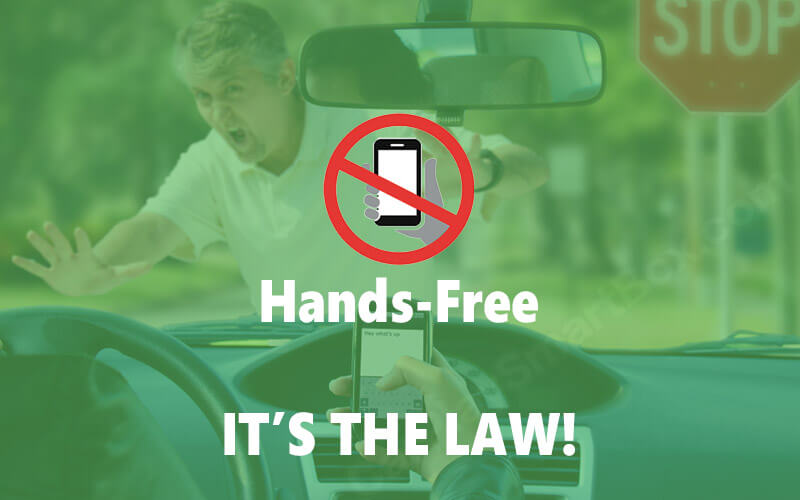
1. Safer Driving Without Distraction.
CarPlay is designed to keep you focused on driving, allowing you to rely on voice communication or controls without taking your eyes off the road. Connect your smartphone to CarPlay/Android Auto and your apps will appear on the screen. All remotely.
2. Say Goodbye to Cables & Simplify Reality.
LESS IS MORE. Say goodbye to tangled cables. Wireless is the future.

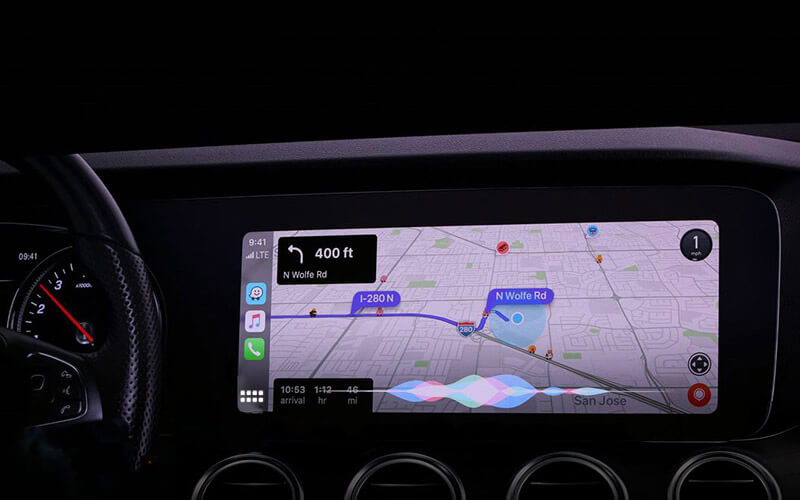
3. Easier and Smarter Experience
Whether you're calling, chatting, navigating, listening to music, or sending messages, all REMOTELY.
4. Better Entertainment Experience
A large screen + high-quality car multimedia system + tons of third-party apps allow you to break free from the limitations of your iPhone and enjoy FREEDOM.

5. Cost-Effective Upgrade to High-Quality Wireless CarPlay
Install our Smart Box instead of buying a new car and SAVE A LOT OF MONEY. Plug and play. Keep your car's factory multimedia system.

AI Box Getting Started Guide
- Connecting the device to the multimedia system
- How to use wireless CarPlay/Android Auto
- How to use multi-window mode
- How to use screencast
- How to use mirroring
- Connecting the device to the multimedia system
- Plug one end of the cable into your car's USB port. The USB port may be marked with a smartphone icon.
- Connect the other end of the cable to the USB/Type-C port on the AI Box.


- Once the power is turned on, the device will automatically start up and the startup screen will appear on the car screen.
- The initial identification process may take a few minutes. Once the device's main interface appears on the car's screen, the connection is successful.
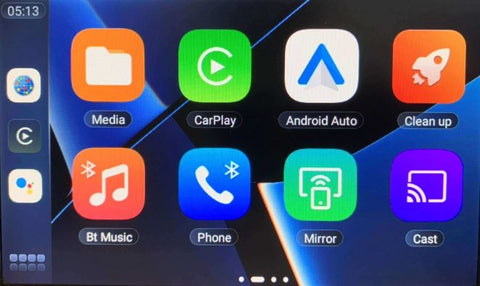
- How to use wireless CarPlay/Android Auto
- Turn on Bluetooth and Wi-Fi on your phone.
- Click the CarPlay or Android Auto icon on the main interface of the device to enter the connection screen.
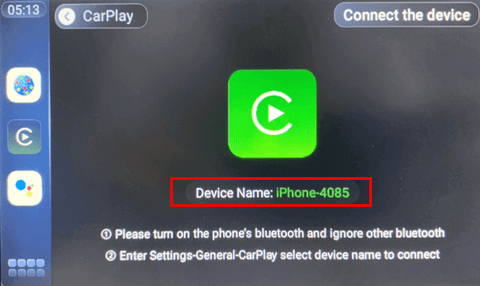
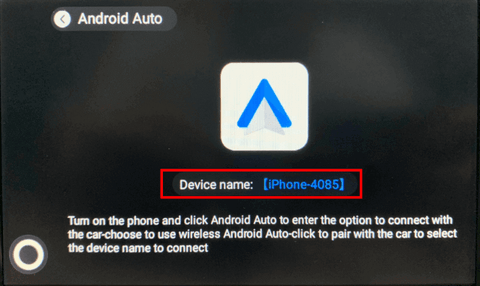
- Then on your phone:
- iPhone: Go to Settings > General > CarPlay and select the name of the device to connect.
- Android Phone: Click Android Auto to enter the car connection option > Select "Use wireless Android Auto" > Click "Pair with car" and select the device name.
- How to use multi-window mode
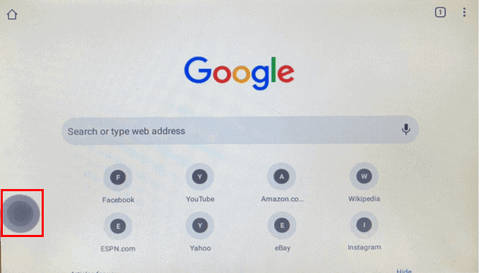
- Tap an empty space to display the Home button. > Tap the Home button.
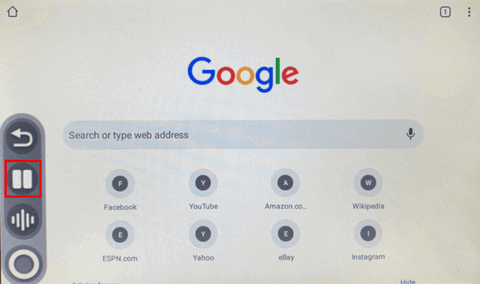
- Tap the multi-window button.
- Tap the app icon.
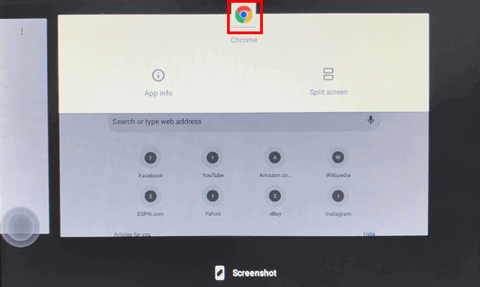
- Select another window you want to add.
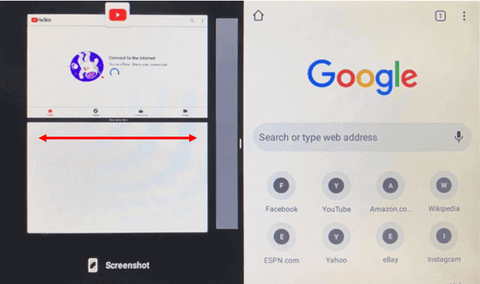
- How to disable multi-window mode > Hold the middle part and swipe left or right.
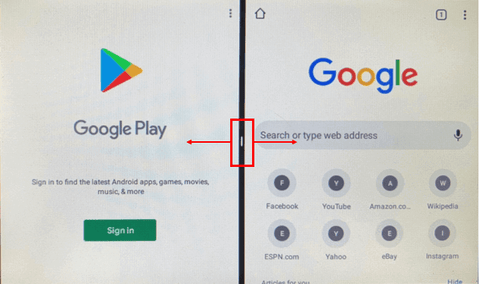
- Tap an empty space to display the Home button. > Tap the Home button.
- How to use screencast
Before you begin, make sure your device is connected to the same Wi-Fi network as your phone OR your device is connected to your phone's hotspot (Settings > Wi-Fi).- Tap the Cast icon > Check the device name in the upper left corner.
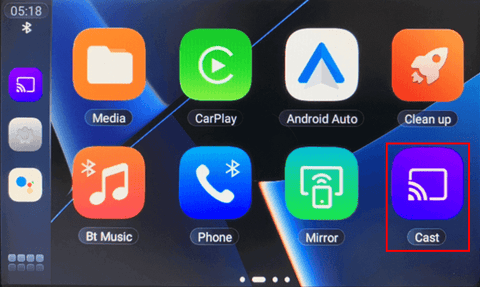
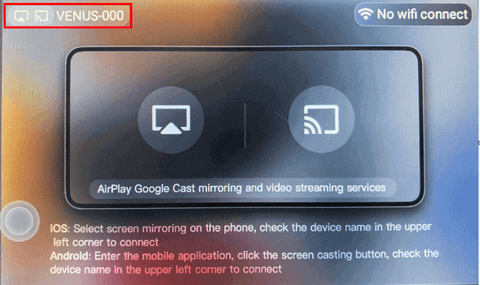
- Tap the "Cast" icon in the phone app > Select the name of the device to connect.
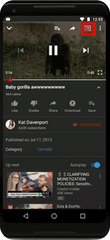

- Tap the Cast icon > Check the device name in the upper left corner.
- How to use mirroring
Before you begin, make sure your device is connected to the same Wi-Fi network as your phone OR your device is connected to your phone's hotspot (Settings > Wi-Fi).- Tap the Mirror icon > Select the icon that matches your phone's system.

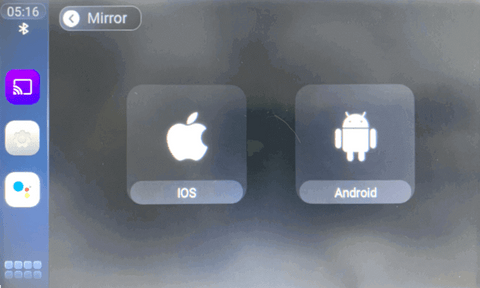
- Tap the "Screen Mirroring" icon on your phone > Select the name of the device to connect.
- Tap the Mirror icon > Select the icon that matches your phone's system.
2024 Car Camera Installation Instructions
Installing a dashcam is a wise investment in your vehicle's safety. In this guide, we'll show you two methods: using a cigarette lighter adapter (CLA) or the direct-connect method. We'll also answer frequently asked questions to ensure a smooth installation process.

How to Install a Car Camera?
Using the Cigarette Lighter Adapter (CLA)
This installation method is simple and convenient. It does not require any modifications to the vehicle's electrical system, but may result in unstable power supply to the camera. The installation steps are as follows:
1. Choose a mounting location for the camera, usually recommended behind the rearview mirror, in the center of the windshield for optimal viewing angle.
2. Clean the selected area on the glass, stick the mounting bracket and mount the camera on the bracket.
3. Connect the cables to the camera.
4. Route the power cable, hiding it behind the headliner and rubber seal, along the A-pillar, going down and passing under the dashboard.
5. Plug the power cable into the cigarette lighter socket.
6. Insert the memory card into the camera, start the engine, and the camera will start recording.
Direct connection method to the electrical installation (Hardwire)
This installation method provides more stable power and doesn't occupy the cigarette lighter socket, but it does require more installation steps and modifications to the vehicle's electrical system, which may require professional skills or assistance. The steps are as follows:
1. Required tools
- Hardwire kit
- Screw tester (voltage tester)
- Tweezers
- Key
- Tool for removing trim elements
2. Find the mounting point
Choose a location for the camera: usually behind the rearview mirror, in the center of the windshield.
3. Install the camera mount
Clean the selected area, stick the mount and mount the camera on it.
4. Find the fuse box
Locate the fuse box and ground (earth) point, often located under the dashboard on the driver or passenger side.

5. How to route the camera cable
Connect the cables to the camera and route the power cable. Tuck it along the headliner, A-pillar seal, and down to the fuse box, avoiding the airbag wiring.

⭐Note: In the hardwire kit, the yellow wire is for the battery (constant power) and must be connected to the fuse socket with constant power. The red wire is for ACC (ignition power) and should be connected to the ACC socket, and the black wire is for ground (earth) and must be connected to a ground point.

6. Connect to ground point (earth)
Loosen the ground point screw, connect the black ground wire of the hardwire kit and tighten the screw.

7. Locate the fuse socket with permanent power
Turn off the ignition, use a test light to find the socket that is still live.

8. Install the fuse
Use tweezers to remove the fuse, install it in the yellow battery power wire of the hardwire kit.

9. Insert the yellow battery power wire into the original fuse socket.

10. Connect to ACC socket
Use a test lamp to locate the socket that only has voltage when the ignition is turned on. Remove the fuse, install it in the red ACC wire of the hardwire kit, and insert the wire into the original fuse socket.
⭐Note: The camera now has a constant power supply and the built-in voltage cut-off function will protect the battery.
11. Use cable ties to secure excess power cable.
12. Test the camera
Insert the memory card into the camera, turn on the power and complete the setup.
Summary
With this comprehensive guide and answers to frequently asked questions, you can confidently install a dashcam in your vehicle, increasing driving safety. A properly installed dashcam will ensure you capture important video footage whenever needed.

FAQ about installing a car camera
1. Where to mount a car camera?
It is best to place the camera behind the rearview mirror to minimize obstructions and maximize visibility.
2. How much does it cost to install a car camera?
DIY installation costs are generally low, primarily covering the camera and any required accessories. Professional installation may incur additional costs.
3. Does installing a car camera void the warranty?
In most cases, installing a dashcam will not void your vehicle's warranty. However, it is recommended that you familiarize yourself with the warranty terms to avoid any potential issues.
4. How long does installation take?
Installation time varies depending on the method chosen and the complexity of the vehicle, typically taking between 30 minutes and 2 hours.
5. How can I hide my dash cam cables?
Hide camera cables along interior trim or headliner using cable clips, adhesive mounts, or cable trays for a clean and professional-looking installation.
6. Is professional installation required?
While DIY installation is possible, professionals offer additional expertise for optimal placement and functionality.
Looking for the best dash cam? Check out the Aoocci 2024 Dash Cam for a wide selection and reliable performance.
User manual


Android Auto device support
Clear Android Auto Cache and Storage
A wireless CarPlay box is a device that allows you to add Apple CarPlay functionality to vehicles that do not otherwise support CarPlay.
What is Android Auto?
Android Auto is an advanced software system that enables seamless integration between Android devices and in-vehicle infotainment systems. This technology allows users to access a wide range of features and apps from their smartphones directly on the car's dashboard display. Using voice commands and a simplified interface, Android Auto allows drivers to stay connected while focusing on the road. It makes driving safer and more convenient.
What is cache?
In Android Auto, the data and files necessary for the app to function properly are crucial. The cache serves as a temporary repository for this important data, including app preferences, temporary files, and other relevant information, helping Android Auto run smoothly. By efficiently managing and accessing this stored data, the cache significantly improves the user experience and reduces processing time, ensuring a more responsive and efficient overall experience.
Why should I clear Android Auto's cache?
With constant use of Android Auto, excessive data accumulation in memory can potentially lead to various performance issues, including system lag, freezes, and slow response times. This high memory usage can result in a cluttered system, negatively impacting the overall user experience and even potentially causing system instability. However, regularly clearing Android Auto's memory has several benefits. In addition to freeing up valuable space, it significantly improves the app's overall performance, providing a smoother user experience and more efficient functionality to improve the user's driving experience.
How to clear Android Auto cache?
To effectively clear Android Auto cache, you can follow these steps:
1. Open "Settings" or similar option available on your system.
2. Go to Applications.
3. Tap on See all apps.
4. Find and select Android Auto.
5. Go to Memory and Cache.
6. Tap on Clear Memory and Clear Cache.
However, before proceeding with the wipe process, it's crucial to consider the necessary precautions and warnings. Users should be aware of the potential impact this action may have on their Android Auto system, as wiping memory can result in the deletion of temporary data, temporarily impacting the app's performance. By understanding the implications and taking the necessary precautions, users can ensure a smooth wipe process that contributes to optimized performance and longevity of their Android Auto system.
How to Fix Google Maps Automatic Day/Night Mode Not Working on Android Auto
Users who have recently updated Google Maps may encounter an issue with the color scheme automatically switching when using Android Auto.
Theoretically, through the Google Maps and Android Auto setting, users can get three modes of Google Maps color scheme on the head unit, namely auto, day and night.
However, after many users updated Google Maps, the color scheme got out of hand. Some users have the map locked in night mode, others in day mode. Regardless of which mode it's locked in, it poses a security risk to users. If it's in night mode during the day, users may not be able to see the map clearly. If it's in day mode at night, it can be too distracting.

Reason for automatic switch failure
According to many users, it can be confirmed that the culprit behind the Google Maps night mode malfunctioning in Android Auto is Google Maps . The most problematic Google Maps versions are 11.33.0 and 11.33.1. Any users using either of these Google Maps versions may be stuck in dark or light mode.

Solution
-
Restore Google Maps to factory settings.
-
Remove Google Maps and install an older version
-
Turning the headlights/dashboard lights on and off
If everything is set to automatically switch color scheme modes, turning your headlights/dash lights on and off will force Google Maps to switch to the correct mode. But every time you use Android Auto again, you encounter the same problem.

Summary
In the Google Community, a member of the Android Auto team said the issue has been escalated to the team, but didn't say when a fix would be available. Hopefully, the Google Maps automatic day/night mode issue in Android Auto will be resolved in the latest version of Google Maps.
11 Ways to Fix Wireless Android Auto Not Working in 2024
How to connect Android Auto wirelessly?
Android Auto serves as a seamless interface for connected cars, extending the functionality of our smartphone operating systems to enhance driving safety. With wireless Android Auto, you can effortlessly connect to your car's larger touchscreen, getting directions, playing music from a Spotify playlist, or sending text messages without reaching for your phone.
To connect Android Auto wirelessly, just follow these simple steps:
- Turn on your car and turn on Bluetooth on both your phone and the car.
- Connect your phone to your car via Bluetooth.
- Open the Android Auto app on your phone, select the wireless connection option, and follow the on-screen instructions to complete setup.
After the initial setup, your phone will automatically connect to Android Auto whenever it's in range.
Why isn't my wireless Android Auto working in my car?
Unfortunately, no wireless system is completely stable. When wireless Android Auto doesn't work or constantly drops out, it's very annoying. Several factors (such as your mobile phone, car compatibility) can affect your wireless Android Auto connection. If your wireless Android Auto isn't working, you can try the following common troubleshooting steps to fix it.
1. Make sure you have compatible devices
a) Make sure you are connecting to a compatible car or aftermarket wireless receiver.
If you are unsure, please contact your local car dealer.
b) Make sure your country supports wireless Android Auto.
Google Assistant for Android Auto is available in the following countries:
- Australia
- Belgium
- Canada (English)
- Denmark
- France
- Germany
- India (English)
- Indonesia
- Netherlands
- Norway
- Poland
- Portugal
- South Korea
- Sweden
- Thailand
- Türkiye
- Great Britain
- United States
c) Make sure your phone has the Android Auto app.
i. Phones running under Android 9 must go to the Google Play Store to download the Android Auto app. Starting with Android 10, Android Auto is built into phones.
ii. Make sure your phone has 5GHz Wi-Fi.
2. Keep Bluetooth, Wi-Fi, and Location Services turned on
Wireless Android Auto requires your phone to be paired with your car via Bluetooth, and then transfers data over Wi-Fi. Make sure your car's infotainment system and your phone are connected to the same Wi-Fi network.

3. Check for interference
Wireless signals can be subject to interference. Make sure there are no other devices nearby that could cause interference.
4. Check app permissions
Check that the Android Auto app on your phone has the necessary permissions, including location access.
5. Restart your phone
For most phones, hold the power button for 30 seconds or tap "Restart" on the screen to restart your device.

6. Restart or reset your infotainment system
Some cars start "cleanly" every time you turn the key. So check your owner's manual to see if there's a way to restart the system.
7. Update your phone's system
The latest operating system fixes issues that the older system may have had. To keep everything running smoothly, make sure your phone's operating system is the latest version.
8. Update Android Auto
> Outdated versions of Android Auto can cause various issues on some devices. Update Android Auto to the latest version from the Google Play Store.

9. Clear memory/cache
Clear cache/memory for Android Auto, Google apps, Google Play Services, and Google Play Store.
10. Check your connected car
Go to Settings > Advanced features > Android Auto > Connected car. Check here to see if your car is on the rejection list.
11. Uninstall and reinstall Android Auto
Even though your Android Auto app may be the latest version, it's possible that the app has become corrupted. Uninstalling and reinstalling Android Auto may be the solution.
---------------------
⭐To purchase a wireless Android Auto or Apple CarPlay adapter, click the 🔥 CarPlay Box . Use the discount code "CARPLAY" to enjoy a 16% discount!

How to connect to the wireless app Android Auto and use it
Android Auto is a feature that allows you to easily and safely use your phone in the car, such as music and navigation apps. In most cases, to fully utilize Android Auto, you'll need to connect your phone to your car using a cable.
However, with some phones and cars, you may find it easier to use wireless Android Auto. Let's find out if you can try this feature and, if so, how to use wireless Android Auto.
Contents
- Phone support for wireless Android Auto
- How to connect to your car's wireless Android Auto
- What if my car only has a wired connection and does not have built-in wireless Android Auto?
Phone support for wireless Android Auto
An Android phone that meets the requirements for wireless Android Auto is one of the prerequisites. The phone must meet the following requirements:
- Any phone with Android 11.0 or later
- Google or Samsung phone with Android 10.0
- Samsung Galaxy S8, Galaxy S8+ or Note 8 with Android 9.0
- 5GHz Wi-Fi support, as wireless Android Auto uses Bluetooth pairing and 5GHz Wi-Fi for data transmission.
- Active data plan
How to connect to your car's wireless Android Auto
Generally speaking, wireless Android Auto is available on models circa 2021 and later, as it's the latest feature. Of course, it's important to note that not all automakers support wireless Android Auto, and support may vary depending on the specific model you purchase.
[[[
Which cars offer wireless Android Auto in 2022:
]]]
{{{
- Acura: MDX, RDX
- Audi: A3, A4, A5, A6, A7, A8, E-Tron, E-Tron GT, Q3, Q5, Q7, Q8
- BMW: Series 2, Series 3, Series 4, Series 5, Series 7, Series 8, iX, i4, X3, X4, X5, X6, X7, Z4
- Buick: Enclave, Encore GX, Envision
- Cadillac: CT4, CT5, Escalade/Escalade ESV, XT4, XT5, XT6
- Chevrolet: Blazer, Bolt EV, Bolt EUV, Camaro, Corvette, Equinox, Malibu, Silverado 1500, Silverado 1500 LTD, Silverado 2500/3500, Suburban/Tahoe, Trailblazer, Traverse
- Chrysler: Pacifica
- Dodge: Durango
- Ford: Bronco, Edge, E-Transit, Expedition/Expedition Max, F-150, F-150 Lightning, Mustang Mach-E
- GMC: Acadia, Hummer EV, Sierra 1500, Sierra 1500 LTD, Terrain, Yukon/Yukon XL
- Honda: Accord, Civic
- Hyundai: Accent, Elantra, Ioniq (excluding Ioniq 5), Kona, Kona EV, Palisade, Santa Cruz, Santa Fe, Sonata, Tucson, Venue
- Infiniti: Q50, Q60, QX50, QX55, QX60, QX80
- Jeep: Compass, Grand Cherokee/Grand Cherokee L, Wagoneer/Grand Wagoneer
- Kia: Carnival, Forte, K5, Niro, Rio, Sorento
- Lincoln: Navigator, Nautilus
- Maserati: Ghibli, Levante, MC20, Quattroporte
- Porsche: 911, Cayenne, Panamera, Taycan
- Ram: 1500, 2500/3500, ProMaster
- Toyota: Tundra
- Volkswagen: Arteon, Atlas/Atlas Cross Sport, Golf GTI/Golf R, ID.4, Jetta, Taos, Tiguan
}} }
If your car supports wireless Android Auto, pairing is simple. Each car manufacturer's system works slightly differently, but in most cases, you can use wireless Android Auto by following these five steps:
- If you don't have Android Auto on your phone, you need to download Android Auto from the Google Play Store
- Turn on Wi-Fi and Bluetooth on your phone
- Turn on your car > Press the Android Auto button on your infotainment screen > Press "Connect phone"
- On your phone > Bluetooth > Pair your car with your phone
- Grant Android Auto all necessary permissions


You're now free to use wireless Android Auto. If you're having trouble using wireless Android Auto, follow our troubleshooting steps .
What if my car only has a wired connection and does not have built-in wireless Android Auto?
The easiest way to add wireless Android Auto to a car that already supports the wired version is to use a USB adapter. Smart Box currently offers four products to suit different needs. Here's a comparison of the four products:

Clear Android Auto Cache and Storage
A wireless CarPlay box is a device that allows you to add Apple CarPlay functionality to vehicles that do not otherwise support CarPlay.
What is Android Auto?
Android Auto is an advanced software system that enables seamless integration between Android devices and in-vehicle infotainment systems. This technology allows users to access a wide range of features and apps from their smartphones directly on the car's dashboard display. Using voice commands and a simplified interface, Android Auto allows drivers to stay connected while focusing on the road. It makes driving safer and more convenient.
What is cache?
In Android Auto, the data and files necessary for the app to function properly are crucial. The cache serves as a temporary repository for this important data, including app preferences, temporary files, and other relevant information, helping Android Auto run smoothly. By efficiently managing and accessing this stored data, the cache significantly improves the user experience and reduces processing time, ensuring a more responsive and efficient overall experience.
Why should I clear Android Auto's cache?
With constant use of Android Auto, excessive data accumulation in memory can potentially lead to various performance issues, including system lag, freezes, and slow response times. This high memory usage can result in a cluttered system, negatively impacting the overall user experience and even potentially causing system instability. However, regularly clearing Android Auto's memory has several benefits. In addition to freeing up valuable space, it significantly improves the app's overall performance, providing a smoother user experience and more efficient functionality to improve the user's driving experience.
How to clear Android Auto cache?
To effectively clear Android Auto cache, you can follow these steps:
1. Open "Settings" or similar option available on your system.
2. Go to Applications.
3. Tap on See all apps.
4. Find and select Android Auto.
5. Go to Memory and Cache.
6. Tap on Clear Memory and Clear Cache.
However, before proceeding with the wipe process, it's crucial to consider the necessary precautions and warnings. Users should be aware of the potential impact this action may have on their Android Auto system, as wiping memory can result in the deletion of temporary data, temporarily impacting the app's performance. By understanding the implications and taking the necessary precautions, users can ensure a smooth wipe process that contributes to optimized performance and longevity of their Android Auto system.